Your clients get a portal, and can edit their own site
Invite a client's people as View or Can edit guests. They get a portal with your logo, and editors change their shared sites as drafts that wait for you to publish.
 The Stacklumen team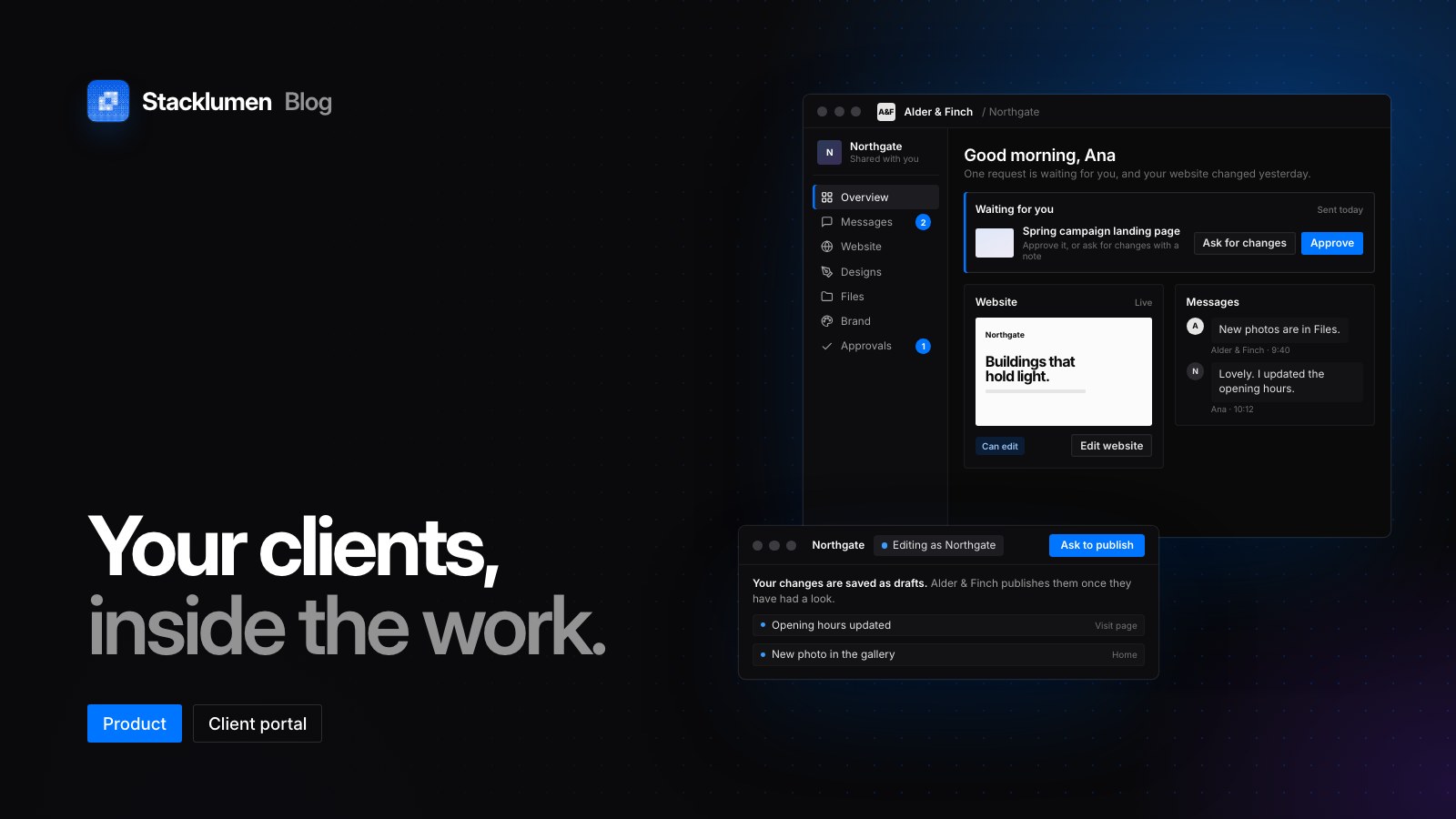
On this page
Your clients now have a portal of their own in Stacklumen, and the people you invite from a client can be allowed to edit that client's website. Each guest is View or Can edit. An editor changes the client's shared sites in the same visual designer your team uses, every change saves as a draft, and nothing goes live until your agency publishes it. If you build sites for clients and spend time on their small text and image changes, this is for you.
A portal with your agency's name on it
Since 8 October, a client you invite has a portal at stacklumen.com/app/shared. It carries your agency's logo and name, and gives each thing you share its own section: Overview, Messages, Website, Designs, Files, Brand and Approvals. Overview shows what is waiting on the client, their website at a glance, the latest messages and recent files. Messages is the real chat with your team, inside the portal.
The client sees only what is filed under their company: its sites and designs once they are published, plus the work in progress on any you turn Share on for in the client's Sites tab. Since 10 October, Website previews a shared site as published, at any page or CMS item it publishes. Your own previews still show the working copy.
Files and Brand are a space you keep together. Brand holds the client's colours, typefaces, logos and guidelines. A file stays your team's until you share it, and guests send files of their own, up to 50 MB each; programs and scripts are refused. Approvals lists what you have asked them to approve, with Approve and Ask for changes.
View or Can edit
Since 14 October, each guest on a client's Access tab is View or Can edit. Owners and admins choose it when they invite someone and can change it later, and the guest is told by bell and email either way.
- View: the work you share, the client's chat channel with your team, and approvals.
- Can edit: all of that, plus every site filed under that client and shared with them, to change in the visual designer.
An editor opens Edit website from the portal's Website section and gets the designer in client mode: elements and sections, pages, layers, assets, classes and variables, with undo, history, breakpoints, preview and comments. Code, the CMS, site settings, domains, agents and the rest of your workspace are not there.
The server enforces this, not only the screen. A client's save can move, copy or remove the pieces you built, but it cannot add custom code, scripts, embedded frames, or form and redirect addresses that were not already on the site. A save that tries is refused with a sentence the designer shows them.
Ask to publish, then you publish
Where your team sees Publish, a client editor sees Ask to publish. It saves their latest edits first, so the version you open is the one they asked about, and lets them add a note. Each site holds one request at a time.
Your owners and admins, and the members with access to that client, are told by bell and email. The request appears under Asked to publish on the client's Approvals tab and in the client's pane in chat, with Publish, which opens the site in the designer ready to publish, and Decline, with an optional note the client reads. Any production publish of the site answers the request, and the client hears that their changes are live.
History names the client as the author of each version they save, so you can tell their work from your team's. A client editor reads and answers only the comment threads their own company started, and your comments panel marks those as from the client.
Inviting a client's people
A client editor and a team member with edit rights work in the same designer, but they serve different purposes and are set up differently. A team member is invited from Members and has a role in your workspace, and anyone on your team who can edit takes a seat. A client guest is invited from one client's Access tab, sees that company's work and nothing else of yours, cannot publish, and never takes a seat.
Clients and client guests come with the Agency plan. If the plan lapses, guests keep the access they have and View can always be given, but nobody can be given Can edit until the plan is back.
Since 21 October, owners and admins who add a client with an email address can invite that person to the client's space straight away, as View (the default) or Can edit. Each client row's right-click menu also has Invite someone…, which opens Access with the address field ready.
The invitation opens as one panel: your agency's logo with the inviter's picture, what working with you holds, Create your account or Sign in, and the date it is valid until, 14 days after it was sent. Creating an account from it opens on who invited them, such as "Fieldwork invited you to Northgate's space" for an agency called Fieldwork and a client called Northgate. Coming back from sign-up or sign-in accepts the invitation and goes straight to the space, unless accepting would cost the person workspaces of their own; they are asked about that first. The welcome that follows tells an editor that they can edit and that their changes wait for you to publish.
Where to find it
- Clients in the Hub, at stacklumen.com/app/clients, or Clients in Terminal: open a client, then Access to invite guests and choose View or Can edit, and Sites to file sites and turn Share on.
- Your clients' portal is at stacklumen.com/app/shared. Both addresses ask you to sign in first.
- The docs cover company guests, the portal, Files and Brand.
- The changelog records the portal, and the sharing, approvals, files and preview changes around it.