Meet StackIDE, the desktop app for everything you build
StackIDE puts your Stacklumen sites, content, clients and code in one window on Mac and Windows. It comes with every account in the private alpha: download it at stacklumen.com/ide.
 The Stacklumen team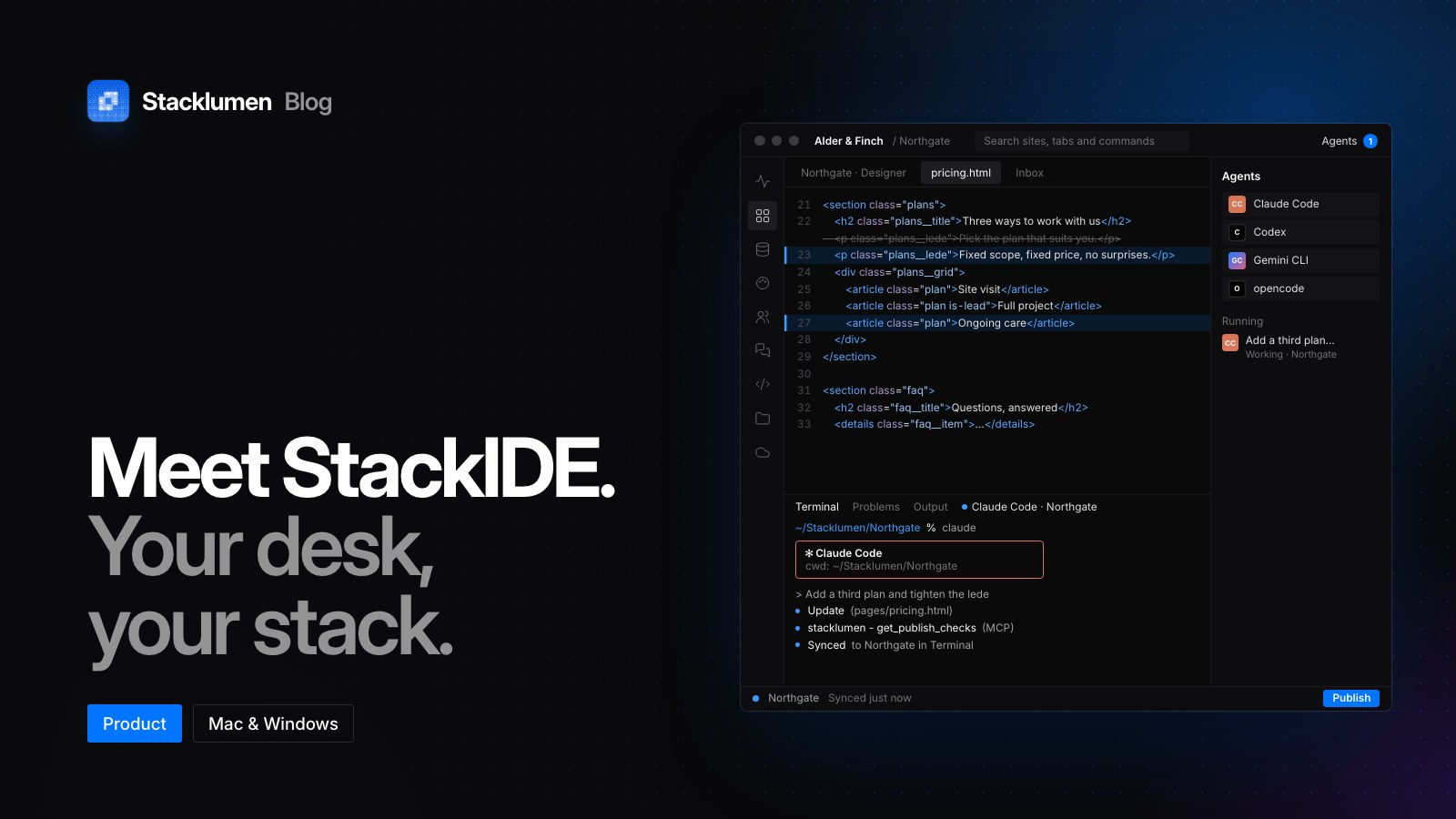
On this page
StackIDE is the Stacklumen desktop app for Mac and Windows. It took that name on 13 October, with its own page, and version 0.1.5, released the same day, is the first whose Mac builds are signed and notarised. Since 14 October it is also where a site's code is written: the designer on the web is the visual editor, and Open in StackIDE takes a site from one to the other on the page you were on. StackIDE is in private alpha and comes with every Stacklumen account.
What is in the window
StackIDE puts your sites, content, brand kits, clients, inbox and code in one window, signed in with the same account, workspace and plan you use on the web. It adds what a browser tab cannot do: real terminals, folders on your computer kept in step with your sites, git, and an Agents panel for the coding agents you already use.
Some tabs are Stacklumen's own pages, such as the designer. What you do in them is exactly what happens on the web, and they update when Stacklumen does. Other screens StackIDE draws itself over the same API: Pulse shows every published site's uptime, checked every five minutes, and Content shows each site's CMS as a grid you edit in place.
Nothing about your work lives only in the app. Sites, content and clients stay on Stacklumen's servers; your computer holds the folders you chose, your encrypted session and a few settings.
The designer and StackIDE: one site, two editors
The designer and StackIDE work on the same site, but they do different jobs and are set up differently. The designer needs only a browser (it also opens as a tab in StackIDE) and is where you build visually. StackIDE is installed on your computer and is where you work on the site as files: each page as HTML, the styles as CSS.
Open in StackIDE takes you from the designer to StackIDE. It sits at the foot of the designer's rail, in the right-click menu, and in the dashboard's command palette (press ⌘K, or Ctrl+K on Windows, and search the site's name), for anyone who can edit the site. The first time, StackIDE asks for an empty folder to keep the site in; after that the site opens straight away.
From a browser, the button hands the site to the app, and the browser may ask to open Stacklumen, the name the app installs under for now. If nothing opens, StackIDE is not installed on that computer. The two then stay in step: a save in the folder reaches the canvas within about a second, and an edit on the canvas reaches the folder within a few seconds. GitHub stays in the designer, under Developers (⌘J, or Ctrl+J on Windows).
Folder sync, a terminal and your own agent
Folder sync works both ways. StackIDE writes a site out as one HTML file per page in pages/, the site's styles.css, and each page's own head and body code in page-code/. Edit them in StackIDE's editor or any other, and the server merges each save line by line with whatever changed in the designer meanwhile. Anything else in the folder, such as a README, is never sent or removed.
When you and the designer change the same lines, the site keeps its version, your copy is saved first in .stacklumen/conflicts/, and a notification tells you. Markup the designer cannot hold, such as scripts or on… event attributes, is refused: your file stays as you wrote it, the site does not change, and the file is listed under Problems.
The terminal panel opens your own login shell, several at once, in the folder you are working in. The Agents panel finds the coding agents installed on your computer (Claude Code, Codex, Gemini CLI and six others) and starts the one you choose in the folder you choose, full size in Lumi, StackIDE's view for agent sessions. Each agent runs with its own sign-in, plan and settings.
A synced folder also gets a .mcp.json naming Stacklumen's MCP server, so an agent started there finds it without being told and asks you to sign in once with your Stacklumen account. StackIDE itself never talks to an AI model and holds no AI key.
Code opens any folder on your computer with an editor, diffs and git, using your own credentials. StackIDE never discards, resets or force-pushes anything; those stay in a terminal, where you type them.
Installing and updating on Mac and Windows
From version 0.1.5, Mac builds are signed with a Developer ID and notarised by Apple, and they update themselves: an update downloads quietly and Restart to update appears in the status bar. On 0.1.4 or older, download the current version once by hand, because a Mac only installs updates into a signed app.
Windows installs its own updates too, but its installers are not code-signed yet, so SmartScreen may say "Windows protected your PC" the first time. Check the installer's SHA-256 against the fingerprint on the download page, then choose More info and Run anyway.
StackIDE runs on macOS 13 Ventura or later (Apple silicon or Intel) and Windows 10 or later (x64 or Arm). There is no Linux build, and it needs a connection, because Stacklumen's pages in its tabs are served live. Until an update renames it, the installed app still calls itself Stacklumen.
Where to find it
- Download StackIDE at stacklumen.com/ide. Downloads are for signed-in accounts; the page lists every installer with its SHA-256 fingerprint.
- It comes with every account during the private alpha. What you can do in it follows your workspace's plan and your role, as on the web.
- In Terminal, Open in StackIDE is at the foot of the designer's rail.
- The docs cover every StackIDE screen, shortcut and setting; Folder sync explains the files.
- The changelog has both entries: the StackIDE name and signed Mac builds, and a site's code opening in StackIDE.