How to edit a site's content in StackIDE
StackIDE's Content section shows every site's collections as a keyboard-friendly grid, with each item edited beside it. Here is how to edit, publish, import a CSV and check search text.

On this page
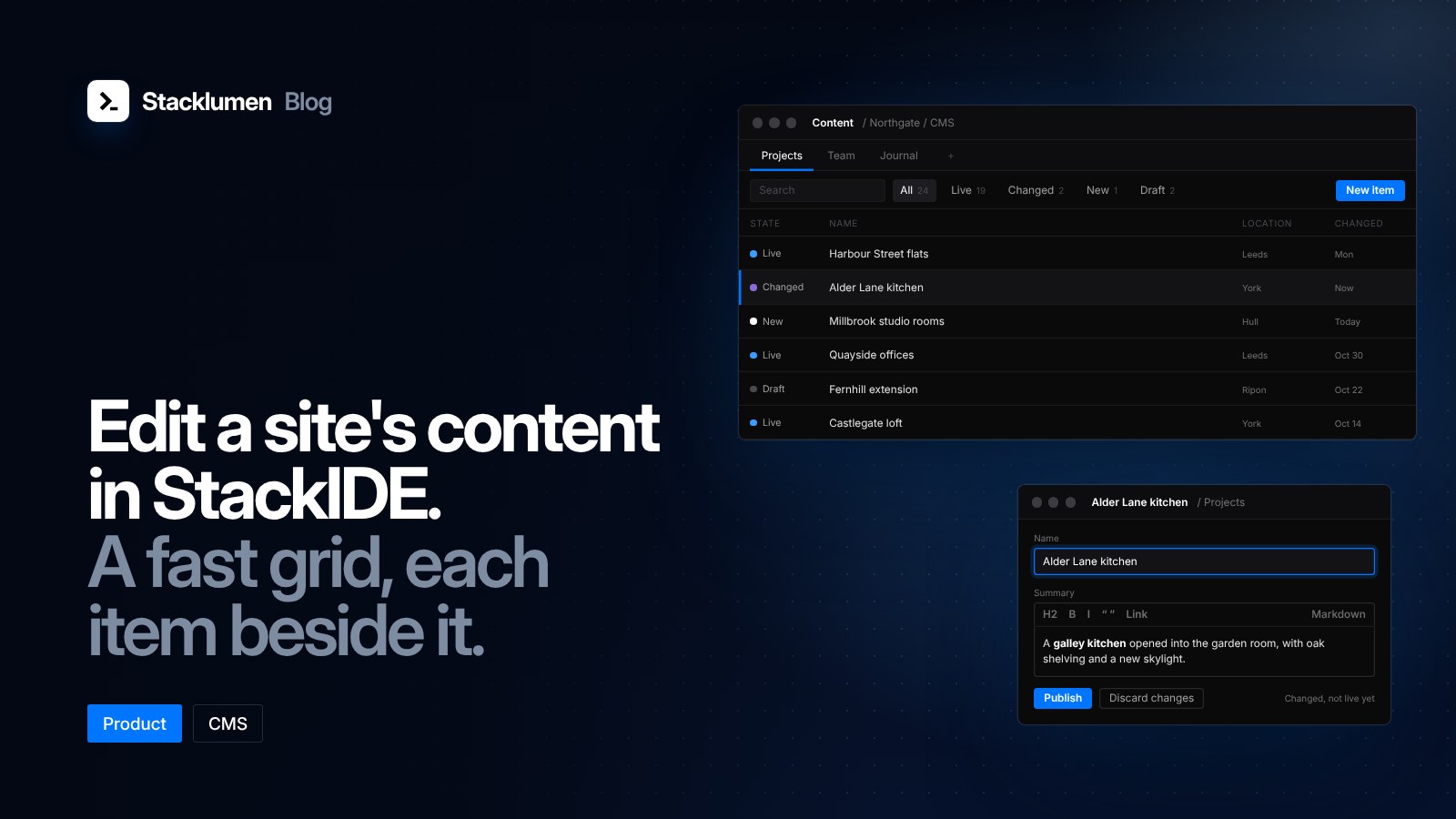
StackIDE, the Stacklumen desktop app for Mac, has a Content section for every site's CMS. It shows each collection as a grid you can move through with the keyboard, with each item opening beside it. This guide covers how to find your way around it, edit and publish items, import a CSV file and check what your pages say to search engines and on social cards.
It is the same CMS as the one on the web.
Open Content
Press ⌘3, or choose Content on the rail. It opens All sites, which shows:
- how many sites, collections and items you have
- the publish errors across them
- a row for each site, with its collections, its publish checks, CMS and Search & share
The sidebar lists every site. Unfold one to see Search & share, Site settings and its Collections, each with its item count.
A Code site has no designer pages, so it has no publish checks and no Search & share. Its titles, descriptions and share cards live in its repository.
Find the item you want
In a site's CMS, the collections run across the top. + makes a new one, Fields edits the open one's fields and ↗ opens it on the web.
The toolbar has a search box and a state filter: All, Live, Changed, New and Draft, each with a count. You can sort by Site order, Recently changed or A to Z. Import, CSV, refresh and New item are there too.
The grid shows one row per item: its state, a column for each field, its address and when it last changed. The grid is only for reading; you can't type into a cell. To edit:
- Click a row to open its item beside the grid.
- Or double-click a cell, or press
↵orF2, to open the item with that field ready to edit. - Use the arrow keys,
HomeandEndto move between cells, andEscto let go.
A yes/no field reads On or Off in the grid. You switch it inside the item.
Edit and publish an item
The item opens beside the grid, with every field in a control that fits its kind, plus its address and Publish, Discard changes, Take off, Duplicate item and Delete item. Opening an item, or tabbing through it, changes nothing. A field is saved only when you change it, and ⌘S saves the value you are typing.
Rich text fields use the same editor as the web CMS. The toolbar covers headings, quotes, lists, a divider, bold, italic, code and links. ⌘K makes a link and ⌘E formats code. Markdown you type or paste arrives formatted, and Markdown shows the stored text so you can edit it directly.
An image field shows a thumbnail, and its box edits the image's address. Alt text, and the images in a gallery and their order, are set in the web CMS.
Edits are staged, just as on the web. An item reads Changed or New until you publish it. ⌘↵ publishes the item under the cursor.
- Take off unpublishes an item: it leaves the live content at once and reads Draft.
- Delete item removes it from the live content at once, and it can't be restored.
To act on several items, press Space to tick rows, then choose Publish, Take off, Discard changes or Delete. When items are waiting, the note "N items not live yet" offers Publish all.
Change fields
Fields adds, changes, reorders and removes fields, up to 40, of every kind the web editor offers. You can also delete the collection from here. Save waits until every problem is fixed. Before it saves, it tells you what the change will do to values already stored, for example when a field is removed or its kind changes.
Import from a spreadsheet
Import takes a CSV file of up to 2 MB. Choose it or drop it in, then pick Add as new items or Update matching items. Updates match on _slug, the item's address. Tick Publish them now if you want the items live straight away.
The preview shows:
- which column lands in which field
- what will be ignored
- values that won't fit
- required fields left empty (those items are held back at publish)
- addresses no item has
Download a template gives you the right columns. CSV shows the rows on screen as CSV, ready to copy.
Check search and share text
On a Design site, Search & share puts every page's title, description, share title, share description, share image and indexing in one grid. Counters show 60 characters for titles and 160 for descriptions, with a preview of the search result and share card each page makes. Before you publish lists the publish checks, each with Fix here or Open in designer.
Site settings holds the project's name, the site name every page title ends with, its language, share image, favicon, address and custom domain, marked Verified or Not verified.
Owners and admins can change search and site settings. Everyone else can read them, and the screen says so.