How to sync a site to a folder, and edit it in any editor
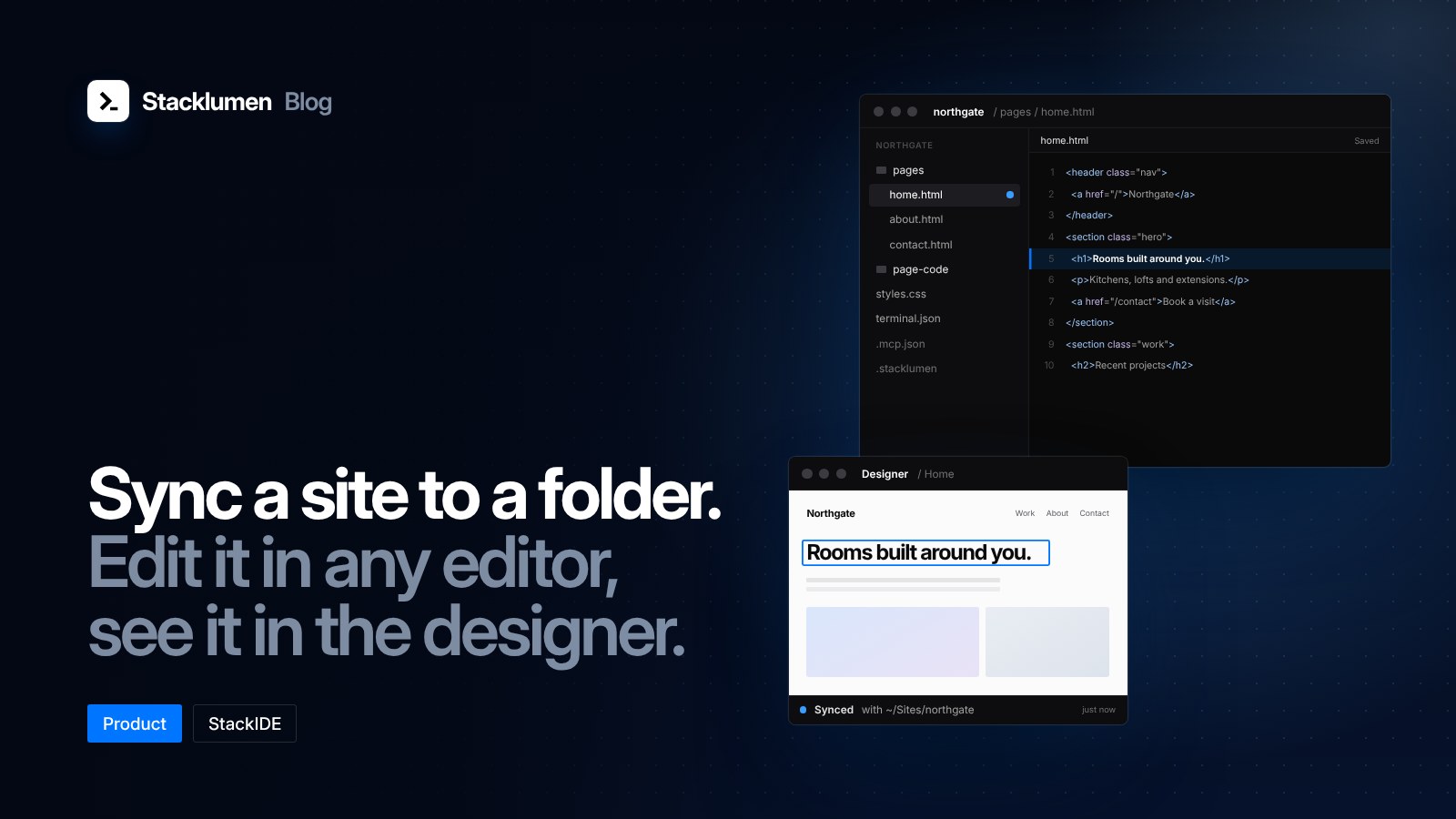
StackIDE can keep a site as plain files in a folder on your computer, in step with the designer both ways. Here is how to set it up, what the folder holds and what happens when two edits meet.

On this page
StackIDE can keep a site as plain files in a folder on your computer. You edit those files in any editor you like, and the designer sees each save within seconds. Changes made in the designer, by you, a teammate or an agent, come back down to the folder just as quickly. This guide covers how to set it up, what the folder holds and what happens when two edits meet.
Before you start
Folder sync is part of StackIDE, the desktop app. Today the download is offered for Mac (macOS 13 Ventura or later, on Apple silicon or Intel). A Windows build exists but is held back until its installer can be signed. You need a Stacklumen account to download it, and the app needs an internet connection.
Sync a site to a folder
- Choose Sync to folder. You can find it on the site's row in Sites, in the status bar, in the command palette, or under File → Sync Site to Folder… while the site is the one you are working on.
- Choose an empty folder, or make a new one, and press Sync Here.
- StackIDE writes the site's files into the folder, opens it in Finder, and keeps the two in step from then on.
A folder holds one site. A folder that already has site files in it is refused, and so is a folder already synced with another site. If you choose Sync to folder for a site that is already synced, StackIDE opens its folder instead.
What the folder holds
pages/<page>.html: each page's markup. Sent to the site.styles.css: the site's stylesheet. Sent to the site.page-code/<page>.head.htmlandpage-code/<page>.body.html: each page's own code, inside<head>and before</body>. Sent to the site.terminal.json: the site's manifest. The site writes it; it is not sent..mcp.json: Stacklumen's MCP server, for agents started in the folder. Not sent..stacklumen/: the sync's own state. Not sent.
Anything else you keep in the folder, such as notes, a README or a git repository around it, is never sent and never removed. If you keep the folder in git, you commit and push it yourself. Stacklumen never writes to your repository.
How the two sides stay in step
- Your saves go up. A file you save reaches the site within about a second. The server merges it line by line with whatever changed in the designer in the meantime, and an open designer shows it within seconds.
- The site's changes come down. Edits made in the designer reach the folder within a few seconds. A file holding an edit that has not gone up yet is never overwritten.
- Files are written whole. A save and an update never cross, so your editor never sees half a file.
- Nothing is lost while the app is closed. An edit you make then is still picked up when StackIDE opens again. On a Mac, synced folders keep syncing while the window is closed, until you quit the app.
- It uses your own sign-in. Sync needs no separate key, and it pauses the moment you sign out.
When edits collide
If you and the designer changed the same lines, the site keeps its version of those lines. StackIDE first saves your copy in .stacklumen/conflicts/, then writes the site's text, and a notification tells you which file changed in the designer too. Click it to find your copy.
The designer applies the same rules to synced files as to its own edits. It refuses on… attributes, <script> and <style> in markup, a section inside a section, and tags it cannot place. When it refuses markup, your file stays as you wrote it, it appears under Problems, and the status bar shows a count. Fix the file and it goes up again with your next save.
The status bar also tells you when sync is waiting: Sign in to sync when you are signed out, and Offline when there is no connection. Sync tries again once you are back.
Bring your coding agent
When a folder starts syncing, StackIDE adds Stacklumen's MCP server to a .mcp.json file at the folder's root. An agent started in that folder, from Terminal here or the Agents panel, finds it without being told and asks you to sign in with your Stacklumen account once. The file is merged rather than overwritten: other servers you have listed stay, and an existing stacklumen entry is left as you wrote it.
Stop syncing
Open Settings → Synced folders and press Stop syncing, or choose the site under File and pick Stop Syncing. The File menu also lists every synced folder with its state, Show in Finder and Sync Now. The files stay where they are, and if you link the same folder to the same site later, sync carries on from where it left off.