How to trace a failed call in Stacklumen with request logs
Every call an agent, a build or a form makes to Stacklumen answers with a request id and is logged for 30 days. This guide shows where the logs are and how to find the one failed call you need.

On this page
When an agent, a build or a form on a published site calls Stacklumen and the call fails, you need to see what happened. The developer center keeps a log of those calls, and every one answers with a request id you can use to find it again. This guide covers where the logs are, what each row holds, and how to narrow them down to the one call you need.
Open the developer center
The developer center is a sheet you raise from the bottom of the screen. Workspace owners and admins see a Developers tab on the bottom edge of every dashboard screen. Members, viewers and company guests do not.
- Click Developers, or press ⌘J (Ctrl+J on Windows and Linux). The shortcut does nothing while you are typing in a field.
- Choose Logs.
- Drag the tab to make the sheet taller or shorter. Esc closes a detail, then the sheet.
Stacklumen and Stacklumen Base each have their own developer center, and each shows that product's calls alone.
What is logged
In Stacklumen, three doors are logged:
- Agent server: the agent server at
/terminal/api/mcp. - Content API: reads at
/terminal/api/content/v1. - Form posts: visitor submissions from published sites to
/terminal/api/forms/submit. Each is filed under its site, marked test when sent from a staging test address, and markedfiled_as_spamwhen it was.
In Stacklumen Base, its agent server at /app/api/mcp is logged.
Two kinds of call are not in Logs. A call with no valid key or sign-in still gets a request id, but it belongs to no workspace. Calls the dashboards make with your own session carry no request id. The This page section shows those while the page is open: the last 200, kept in your browser and never sent anywhere.
What a row holds
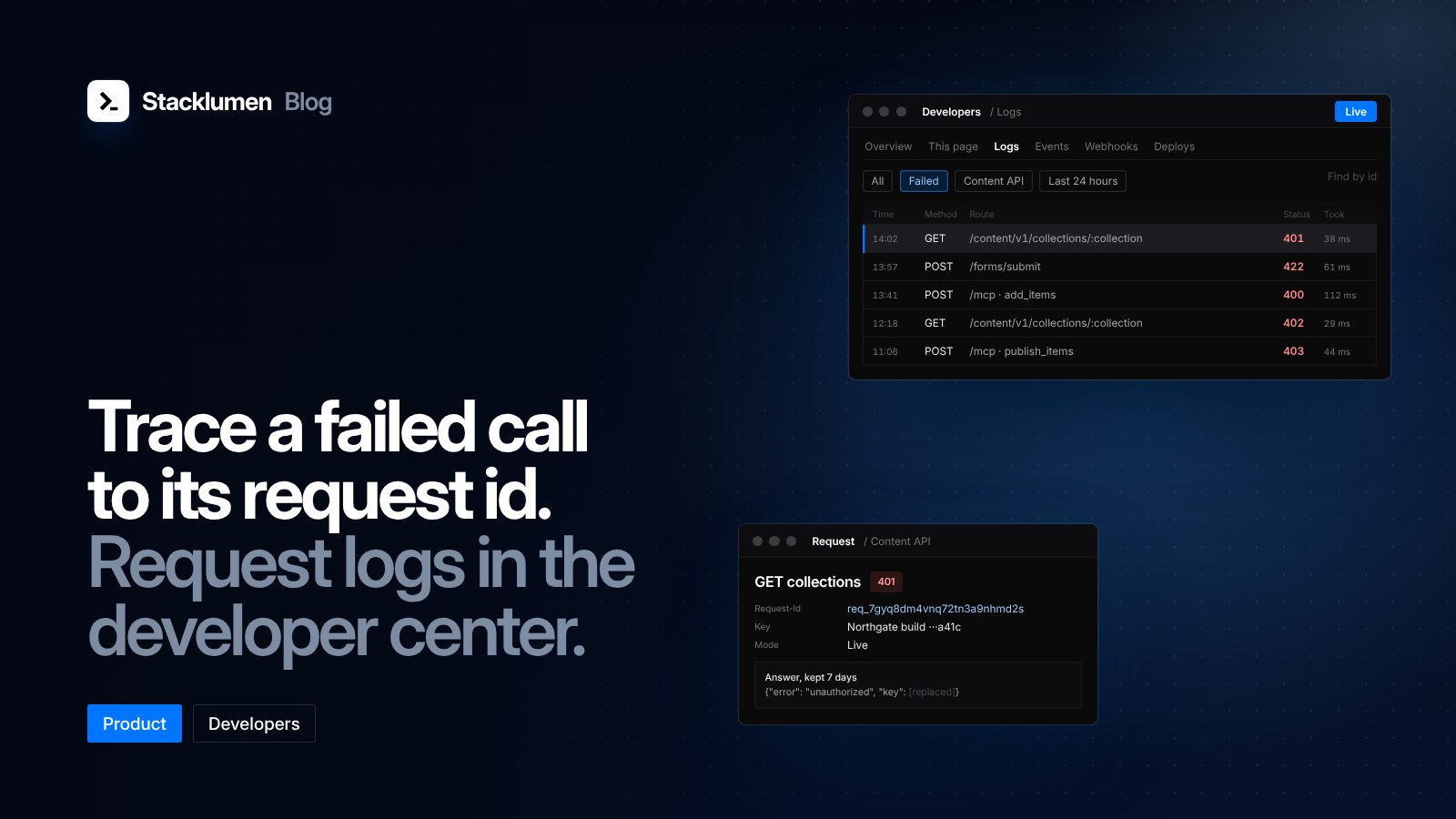
Each row holds the time, the method, the route, the status, how long the call took, and the key or sign-in that made it, by its name and last characters. It also shows live or test, the tool for an agent call, and an error code where there is one.
The route is the shape of the address, such as /terminal/api/content/v1/collections/:collection, never the address as called. A log holds no ids and no query strings.
For a failed call, the first 2 KB of the answer is kept for 7 days. Anything shaped like a key, token, secret, password, cookie or email address is replaced first.
Find the call you need
Start from the request id. Every logged call answers with a Request-Id header, such as req_7gyq8dm4vnq72tn3a9nhmd2s. If your code or build log records that header, paste the id into Find by id in the sheet's head. Find by id also opens events (evt_…), webhook endpoints (we_…), deliveries (wd_…), a site or a deployment.
Or filter. Logs filter by:
- All, Failed, 4xx or 5xx
- door: Agent server, Content API or Form posts
- site
- how far back: Last hour, 24 hours or 7 days
- the key that made the call
- words in the route or the tool name
A call is filed under a site when it names one: a Content API read, or an agent tool call with a site_id.
Check Live or Test. The switch in the head moves between real traffic and test traffic. Test calls are those made with a Stacklumen development content key, which starts cml_test_. If you are debugging a preview build and see nothing, you may be looking at Live.
A routine for one failed call
- Open Logs and choose Failed, the door, and the site.
- While you repeat the call, set Last hour and turn on Live tail, which checks for new calls every 3 seconds while the sheet is open.
- Open the row for its detail and any events the call caused. Read its status and error code, and the kept answer.
- Note which key made the call. The API keys section lists every credential the product holds; owners can revoke or rotate a key there.
- If you still need help, quote the request id.
To share or keep what you found, CSV and JSON download the rows loaded.
How long things are kept
- Calls: 30 days
- The answer of a failed call: 7 days
- Events: 30 days
- Webhook deliveries: 90 days
If a failure is older than that, it will no longer be in the sheet. Recording the Request-Id header in your own logs means you can match a failure to its row while the row is still kept.