How to set up a form in Terminal, and decide who hears about it
Every form on a published Terminal site sends to the site's own inbox, with spam filtering built in. Here is how to add one, read what arrives, and choose who is told.

On this page
A form is how many sites hear from their visitors. In Terminal, every form on a published page sends its submissions to the site's own inbox, with spam filtering built in. This guide covers how to add a form, where its submissions go, and how to decide who hears about each one.
Add and name the form
- Add a form. Use the Contact form or Newsletter section, or insert a Form with its fields from Insert → Elements → Forms.
- Give every field a name. Whatever a visitor types into an unnamed field is never sent.
- Name the form, using its name in the Settings tab. The form's name is its inbox. A form with no name is filed under its section's name.
- Publish the site. Forms also work on the staging link.
Submissions then arrive on the site's Forms screen, with one tab per form.
What the visitor sees
While a submission sends, its button is disabled. The visitor then reads "Thank you — received." or "Something went wrong — please try again." in the form's note.
You can write your own sentences instead. The Inspector's Form group sets a success message, an error message, and a page of the site to go to after sending.
When a publish has recorded a form, Terminal holds submissions to that form's own fields. A required field must be filled, an email field must hold an address, and any maximum length or pattern applies. The visitor is told which field to put right.
Spam is filed, not lost
Every form that sends to the inbox gets a hidden spam trap when the page is published. A submission that fills the trap stores nothing at all.
Other submissions that look like spam are filed under Spam rather than deleted. That includes a submission sent faster than a person types, a name or message of random letters, an unusual browser name or a disguised address, or a submission to a form name that no publish shipped. Nobody is told about these and no file is kept, but the submission stays, so a mistake can be put back.
The inbox also has limits: 10 submissions an hour from one visitor address to one site, field values of up to 10,000 characters (a longer one is refused, never cut), and no empty submissions.
Working in the inbox
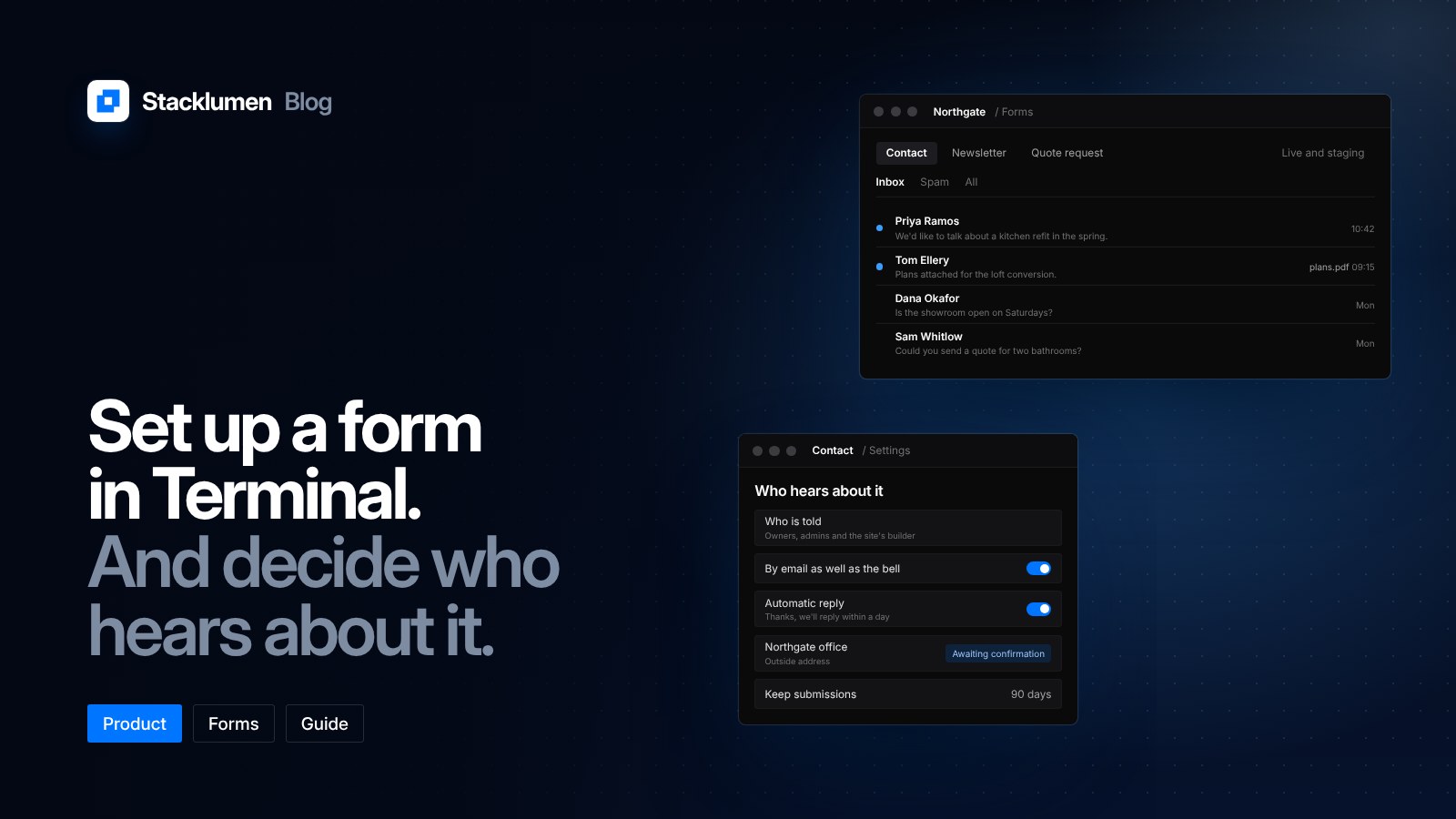
The Forms screen lists every form the published pages carry, including those with no submissions yet. Choose Inbox, Spam or All, and filter by environment: live, staging or both. Search matches any answer, ignoring case.
Editors can mark submissions read, file them as spam or not spam, or delete them. Export CSV downloads the list on screen, up to 50,000 rows.
Two tools help with data requests. Erase a contact deletes every submission that holds one email address, across every form, folder and environment. Erase a form deletes every submission of one form, with its files, while the form stays on your pages.
Viewers can read, open and export, but do not see the controls that change anything.
Decide who hears about it
Each form has a Settings button, for editors. This is where you decide who is told:
- Who is told. By default, the workspace's owners and admins, and the person who built the site while they are still in the workspace. Owners and admins can choose nobody instead. The inbox keeps everything either way.
- By email as well as the bell. Off by default, so only the notification is sent.
- Automatic reply. A subject and a message in your words, sent to the address the visitor typed in the form's email field. It repeats nothing they sent, is never sent for spam, and is limited to 2 a day to one address and 100 a day from one site.
- Outside addresses. Up to five addresses outside the workspace can also get each submission by email. Each is sent a confirmation link and receives nothing until someone there confirms. Only owners and admins can add one.
- Keep submissions. Keep them for good, which is the default, or for 1 to 3,650 days. Older submissions are deleted each night with their files, and are not kept anywhere else.
For an agency, outside addresses are the usual way to send a client's enquiries straight to the client, while the agency keeps the inbox.
File uploads
A file field keeps the visitor's file. Accepted types include PDF, Word, Excel, PowerPoint, OpenDocument, text, CSV, PNG, JPEG, GIF, WebP and HEIC. A submission can carry up to 5 files, 4 MB each and 4.5 MB together, with 40 a day per site.
Files are not scanned for viruses, and every email and screen that offers one says so. They are stored privately, shared as links that expire, and removed when their submission is deleted.
Sending submissions elsewhere
Each submission that is not spam sends a form.submitted event to the workspace's webhooks, with the site, the form and the submission's answers and files. An agent connected over MCP can read forms and submissions with list_forms, get_form_settings and list_form_submissions, and change a form's settings with update_form_settings.