See who has access to every site
Each Terminal site's Settings now has a People tab listing your team, the client's people and what each can see or edit, with sharing and invitations in the same place.

On this page
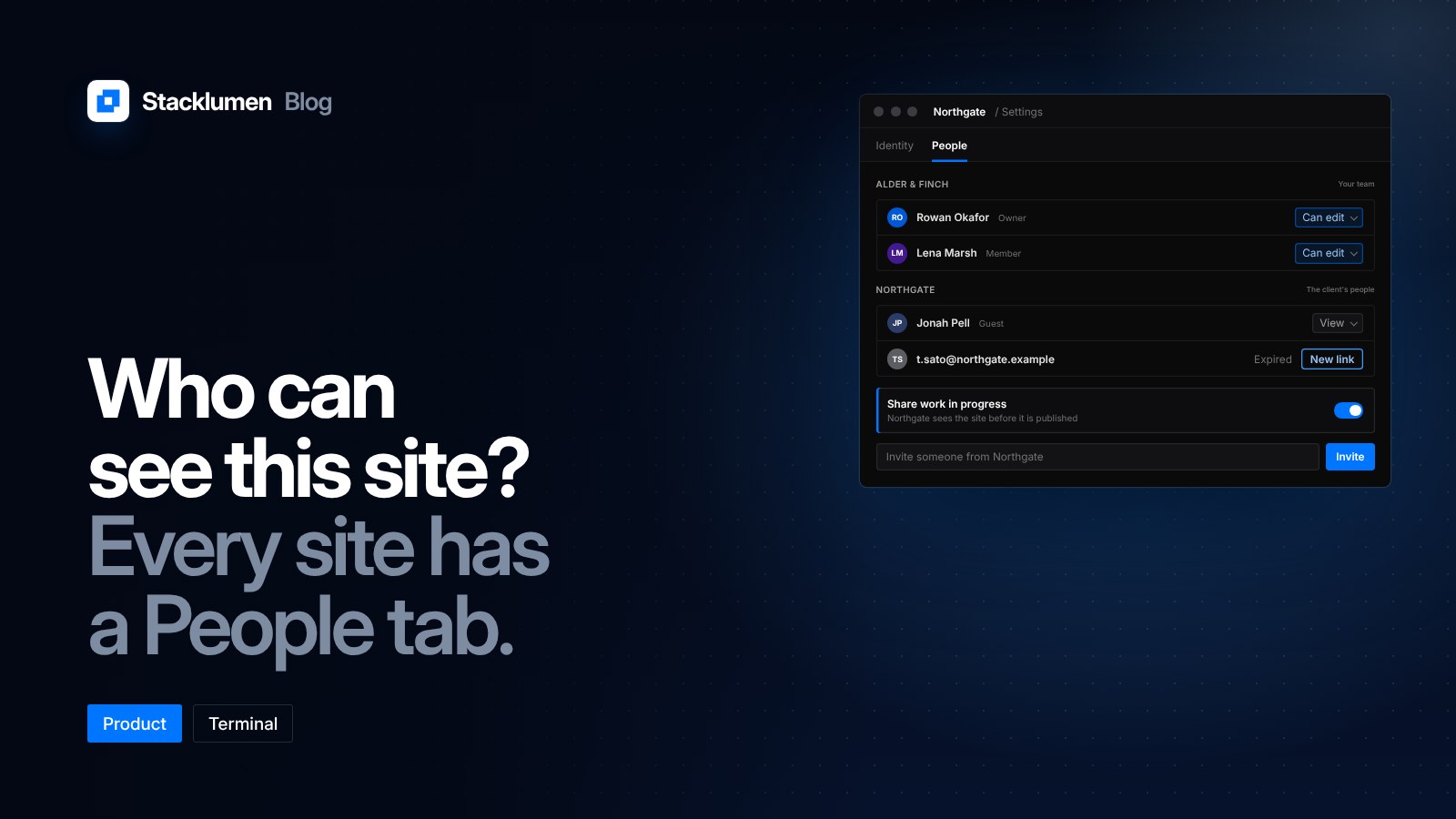
Every Terminal site now has a People tab in its Settings. It lists your team, the client's people and what each of them can see or edit. Sharing and invitations are on the same tab, so you can manage who reaches a site without leaving it.
What the People tab shows
Open a site, go to Settings and choose People. You see two groups:
- Your team: the people in your workspace.
- The client's people: the company guests you have invited from the client the site is filed to.
Beside each person is what they can do on the site. From the tab you can:
- Invite someone from the client.
- Change a person between View and Can edit.
- Share the work in progress, so the client sees the site before it is published.
Before this, the client's guests and pending invitations were listed on the client's Access tab under Clients. That list is still there. The People tab shows the same list for one site, with what each person sees of it.
Expired invitations stay listed
Invitations last 14 days. An invitation that expired without an answer no longer disappears. It stays listed as expired, with a new link one click away. You no longer need to work out who was invited and never joined, or enter their details again.
Members has its own place, and can be limited to some clients
Members now has its own place in the sidebar. It is the same screen in the Hub, Terminal and Baselumen, and the roles set there apply in every product.
Members can now be limited to some clients in Terminal too. A member or viewer limited to named clients sees and changes only those clients. On Members, Limited to and the number of clients appear beside them, and owners and admins can remove the limit. When you invite someone as a member or viewer, Clients they work on lets you confine them from the start.
This is useful when a freelancer or a part-time designer works on one or two of your clients. They can join the workspace without seeing every site you run.
Client people in Baselumen
Baselumen now invites and manages a client's people on the client's Portal tab. The same company guests reach the client portal, where they see the work you share with them, talk with your team, approve what you send and swap files.
Accepting a client invitation keeps your own workspace
Someone who runs their own workspace keeps it when they accept a client invitation. If a client of yours also runs a Stacklumen workspace for their own business, they reach that workspace and the work you share with them from the same account.
Who can change what
A short reminder of the roles, from the docs:
- Owners and admins invite and remove members, change roles other than owner, and invite and remove company guests.
- Members work on clients, projects, sites and designs, but cannot change who is in the workspace.
- Viewers can open clients, projects and sites but cannot change them.
- Owners, admins and members each take one editor seat across the agency. Viewers and company guests are always free.
A viewer is a member of your workspace and can see every site, unless limited to some clients. To show a client their own site, invite them as a company guest instead. A guest sees one company only, never uses a seat, and changes nothing of yours.
Getting started
- Open a site in Terminal and go to Settings, then People.
- Check that the people listed are the ones who should be there.
- Invite anyone missing from the client, and set View or Can edit.
- Send a new link to any invitation that expired.
- On Members, limit freelancers and contractors to the clients they work on.