Transfer a site to another workspace
Hand a finished site to your client, move it between your own workspaces or pass it to another agency, from the Transfer card in its Settings. The site moves whole and stays live while it moves.

On this page
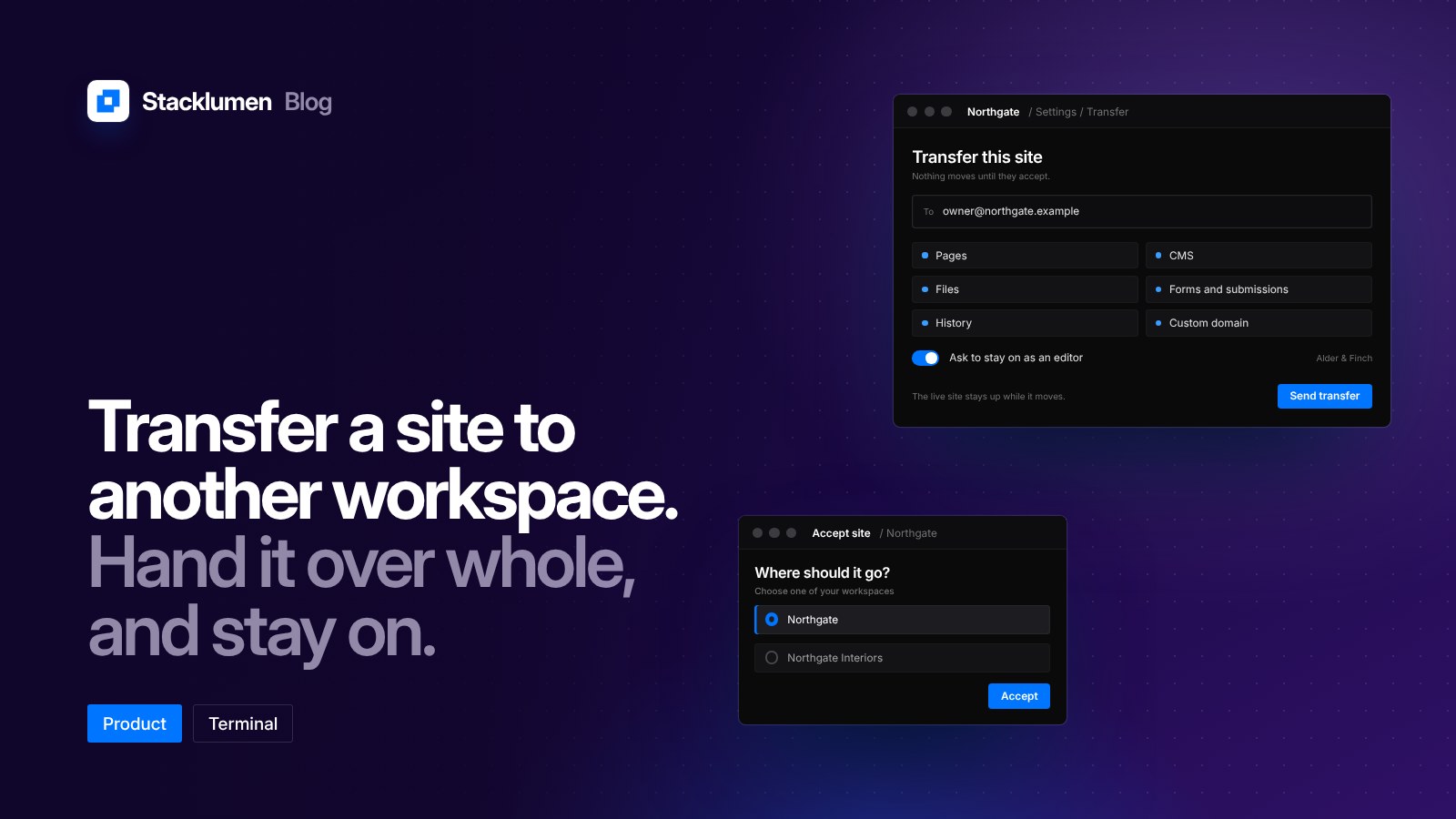
Since 24 October, a Terminal site can move from one workspace to another. You start it from the Transfer card in the site's Settings, and nothing moves until the other side accepts.
There are three common reasons to move a site, and the same card handles each of them.
- Hand a finished site to your client. The client takes ownership of the site in a workspace of their own.
- Move a site between your own workspaces. Useful when you keep separate workspaces and a site has ended up in the wrong one.
- Pass a site to another agency. When a client changes agency, the site can go to the new team whole.
What moves with the site
The site moves whole. That covers:
- its pages
- its CMS collections and items
- its files
- its forms and their submissions
- its History
- its custom domain
The published site stays live while it moves. Visitors keep seeing the site at its usual address during the handover, so there is no need to plan a quiet window for it.
How the other side accepts
The person you are sending the site to gets an email with a link. From that link they choose which of their workspaces the site goes into. If they do not have a Stacklumen account yet, they can make one at that point, so you do not have to ask a client to sign up before you start the transfer.
Until they accept, the site stays where it is.
Staying on as an editor
Handing a site over does not have to mean stepping away from it. When you send a transfer, you can ask to stay on as an editor. That suits the common arrangement where the client owns the site and you keep looking after it: making changes, adding pages or publishing updates on their behalf.
What stays with you
Store orders and client bills do not move with the site. They stay with you as a sales record, and you can download that record from Transfers. That keeps your own trading history in your workspace, separate from the site you have handed on.
A short checklist before you transfer
The transfer itself is one card in Settings, but a handover goes more smoothly with a little preparation:
- Agree who the site is going to. Confirm the email address of the person who will accept it, and which of their workspaces it should land in.
- Decide whether you are staying on. If you will keep maintaining the site, ask to stay on as an editor when you send the transfer.
- Download your sales record. Store orders and client bills stay with you; keep a copy from Transfers for your own accounts.
- Tell the client what to expect. They will get an email with a link, and they can make an account from it if they need one.
Where to find it
Open the site in Terminal, go to its Settings and use the Transfer card. Transfers you have sent and their sales records are listed under Transfers in the dashboard.