Cloudflare lets site owners see personal AI agents and set rules for each
Cloudflare now shows which personal AI agents visit a site and what they do there, and lets site owners allow or block each supported agent. Here is what changed and how to use it.

On this page
Personal agents are AI assistants that turn a person's instructions into requests and actions on a site. Someone might ask one to compare your products, find a support article or complete a purchase. To most analytics, all three look like automated traffic.
On 4 November, Cloudflare announced new analytics that show which personal agents visit a site and what they do there, along with access rules that can be set for each supported agent. If your sites sit behind Cloudflare, these settings are now in the dashboard.
A new traffic category: Personal assistants
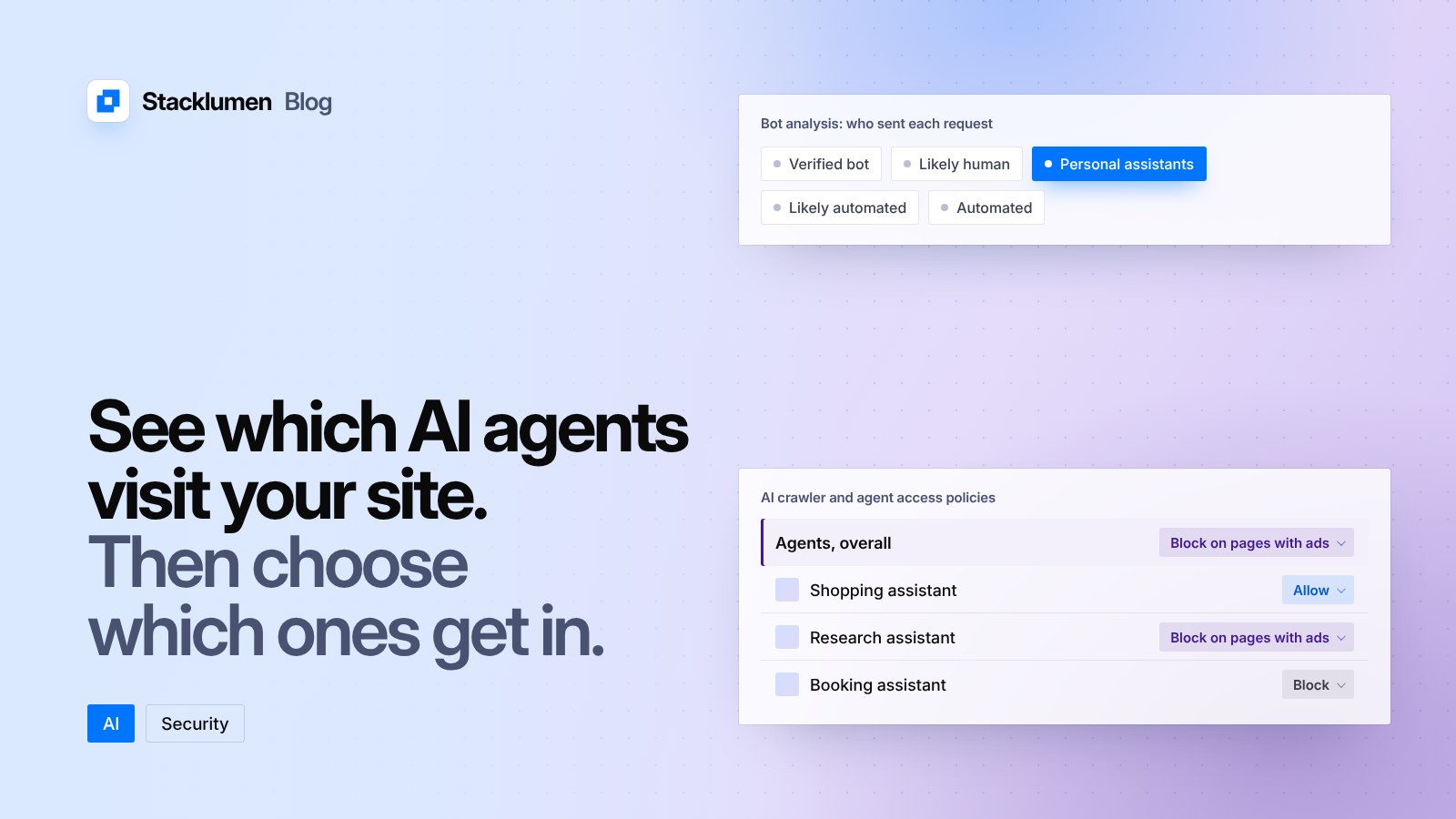
In Security Analytics, the Bot Analysis chart now has Personal Assistants as its own category. It sits next to the existing categories: Verified Bot, Likely Human, Likely Automated and Automated. Selecting it shows only personal agent traffic over time.
Under Top statistics, a new Personal Assistants widget lists which agents are visiting the site and how many requests each one sends. Filtering on one agent updates the other widgets to show only its traffic: the paths it requests, the status codes it receives and the networks it comes from.
Cloudflare says this lets you see whether an agent is logging in, reading product pages, reaching checkout, or hitting errors on pages it cannot use.
Agents tied to user accounts
For sites that use Account Abuse Protection, which Cloudflare says is in early access, the new views go further:
- A population overview shows which personal agents are active across your users, and how many accounts use them.
- Every login and sign-up event shows whether a personal agent made the request, and which one.
- Each user's account overview lists the agents acting for that account.
If an attacker appears to be using an agent on one account, Cloudflare says that account can be blocked with a WAF rule on its Hashed User ID, without blocking the agent for everyone else who uses it.
Per-agent access rules
This summer Cloudflare added AI bot policies with separate choices for bots used for Search, Training and Agent behaviour. The Agents policy now also has options for individual supported personal agents. The setting has been renamed AI Crawler and Agent access policies.
In Security Settings you set an overall Agents policy, then a different policy for each supported agent if you want one. There are three choices:
- Allow (do not block)
- Block on pages with ads
- Block
For example, the overall policy can be Block on pages with ads, while one agent you want to welcome is set to Allow. Existing Search and Training policies are not changed.
When a new site (zone) is added to Cloudflare, onboarding now asks whether you earn money from pages with ads, and suggests policies based on the answer. These can be changed later in Security Settings.
What comes next
Cloudflare says recognising the agent is only part of the problem. A site may know which agent is making a request but not who the person behind it is: whether they are an existing customer, what they allowed the agent to do, or whether they have a subscription. Cloudflare says it is working with agent operators on privacy-aware ways to carry that context, assess reputation and set accountability, and will share more later. It has not given a date.
What it means for your site
- Look before you block. If a site is on Cloudflare, open Security Analytics and check the Personal Assistants category. A shop or booking site may find agents already reaching checkout or contact pages on behalf of real customers.
- Check what agents hit. Use the widget's filter to see the paths and status codes for each agent. Errors on key pages show where an agent cannot complete what the person asked it to do, which is worth fixing for that page.
- Decide per site, not per account. A client whose content is paid for by ads may want a different policy from a client who sells products or takes bookings. Set the overall Agents policy first, then make exceptions.
- Review your existing AI settings. The section's new name is AI Crawler and Agent access policies. Your Search and Training choices carry over, so confirm they still match what each client wants.
- Write it down for clients. If you manage sites for others, record which policy each site uses and why, so it can be revisited as more agents are supported.