Safari now runs on Apple HomeView: check your site on a short screen
Safari has arrived on Apple HomeView, a 7-inch square display people can tap or talk to. WebKit says most sites need no changes, but short viewports, voice input and user agent checks are worth testing.

On this page
Safari now runs on Apple HomeView. The WebKit team announced it on 13 November 2026, adding HomeView to the list of devices that already run Safari: macOS, iOS, iPadOS and visionOS.
HomeView has a 7-inch square display. People can tap it, or speak to it from across a room. In Safari they can look things up, open links friends have shared, or follow a recipe.
The WebKit post is clear that most sites need no HomeView-specific work. It is the same Safari, built on WebKit. But it also lists a few habits that can make a site hard to use on a small, short, voice-driven screen. They are worth checking whatever device your visitors use.
Recipe pages get a step-by-step view
Safari on HomeView can detect a recipe page and offer a streamlined view of its step-by-step instructions. It builds that view from schema.org Recipe data written as JSON-LD.
The example in the post uses name, image, prepTime, cookTime, recipeYield, recipeIngredient and recipeInstructions, with each instruction written as a HowToStep. If you run a site with recipes on it and it has no structured data yet, this is a reason to add it.
Captions belong in a track element
HomeView plays audio and video. For captions to work well, WebKit recommends providing them as WebVTT files in <track> elements inside the <video> element. Its example gives the track kind="captions", a srclang and a readable label, alongside MP4 and WebM sources.
Not everyone clicks or taps
Many people will use HomeView by voice. A voice user calls a control by its name instead of pointing at it. That only works if the control has a name.
WebKit's advice is the same advice that makes a site accessible anywhere:
- Use real buttons, links and form fields, not styled
divelements. - Give every control a clear label.
- Keep tap targets large and layouts flexible.
Don't sniff the user agent
HomeView reports an iOS user agent string. Code that reads the user agent to decide what to show can mistake it for an iPhone.
WebKit recommends feature detection instead: test for the API you need, not for the device you expect. If you promote an iOS app, it suggests Smart App Banners rather than a custom banner shown after user agent sniffing, because a custom banner may not suit HomeView.
Short screens break some layouts
The post lists assumptions that do not hold on HomeView: that screens are always landscape or portrait, never square, or always taller than 600 pixels. HomeView's viewport can be shorter than that.
Two patterns cause most of the trouble:
- Sticky or fixed headers and footers. On a short screen they can leave little room for the content between them.
- Modals taller than the viewport. A visitor who cannot reach the close button cannot dismiss them.
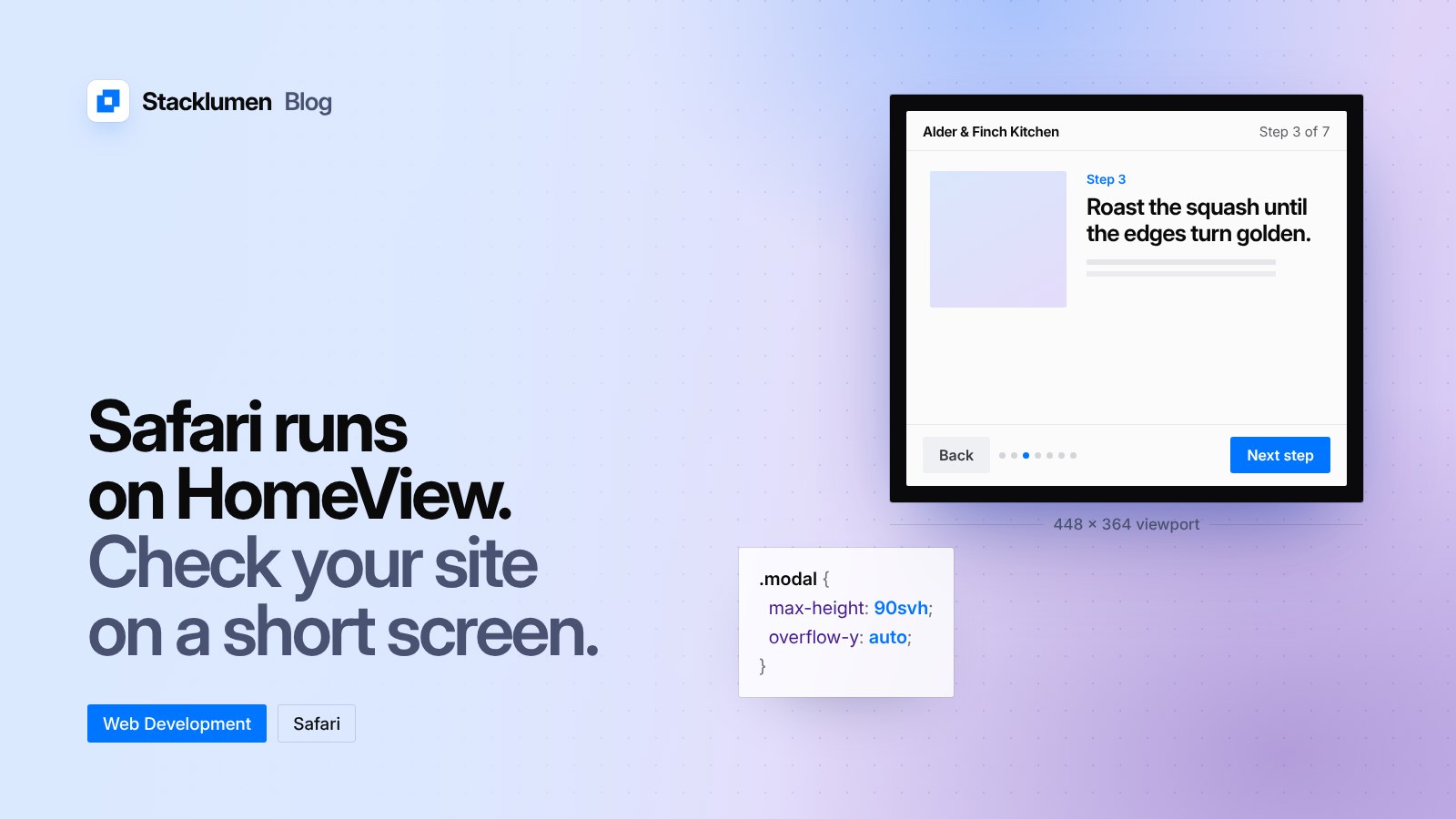
For modals, WebKit suggests limiting the height to the small viewport and letting the content scroll: give the modal max-height: 90svh and overflow-y: auto.
How to test without the device
WebKit gives two ways to check a site:
- Turn a phone to landscape. That quickly shows problems with short screens.
- Use Responsive Design Mode in Safari and set the viewport to 448 × 364 to simulate HomeView.
What it means for your site
If your site already follows current practice, WebKit expects it to work well on HomeView. Before you assume that, run through these checks:
- Load your key pages at 448 × 364 and in landscape on a phone. Make sure sticky headers and footers leave room to read.
- Open every modal, cookie banner and menu at that size. Confirm each can be scrolled and closed.
- Check that buttons and form fields are real elements with clear labels.
- Search your code for user agent checks and replace them with feature detection where you can.
- If you publish recipes, add schema.org
Recipestructured data. - If you publish video, add captions as WebVTT tracks.
None of these are specific to one device. Each one also helps visitors on small phones, people using voice control and people using assistive technology.